API Key Management
API keys are credentials used to authenticate the PlayServ SDK and REST API calls. Each key is scoped to a project, a type, and an environment.
A project can have multiple keys — for different integrations, environments, or rotation workflows. Using separate keys per integration makes it easier to revoke access precisely without affecting unrelated services.
Key types
PlayServ has two key types. Choose the one that matches where the key will be used.
Server keys provide full backend access. Use them from your game servers, backend services, and CI pipelines. A Server key can call any PlayServ REST API endpoint, including those that mutate data. Because of this, Server keys must be kept secret and must never be included in a client build or shipped with the game.
Client keys are scoped to a limited set of operations: event publishing and catalog reads. They are designed to be safe to include in your game build. If a Client key is extracted from a build, the damage is limited — it cannot be used to modify server-side data or access anything beyond what a regular game client would need.
Treat all API keys as sensitive credentials. Do not share them in tickets, screenshots, chat messages, Slack threads, or public repositories. For Server keys especially — exposure means full backend access to your project.
Why a project can have multiple keys
A single project can contain as many keys as needed. This is useful in several common situations:
- A backend service and a CI pipeline should each have their own Server key, so either can be rotated independently without affecting the other.
- A game client uses a Client key. A backend uses a Server key. They should never share the same credential.
- When rotating a key, having a second key lets you issue the new credential and update the service before revoking the old one — avoiding downtime.
- Temporary keys can be issued for contractors, specific builds, or external integrations, then revoked when no longer needed.
Keeping keys separate and well-named makes the key table much easier to manage as the project grows.
Create a key
Open Keys in the project sidebar. If no keys exist yet, the page shows an empty state with a Create your first key button. The empty state also includes a Read the auth docs link for quick reference to the authentication documentation.
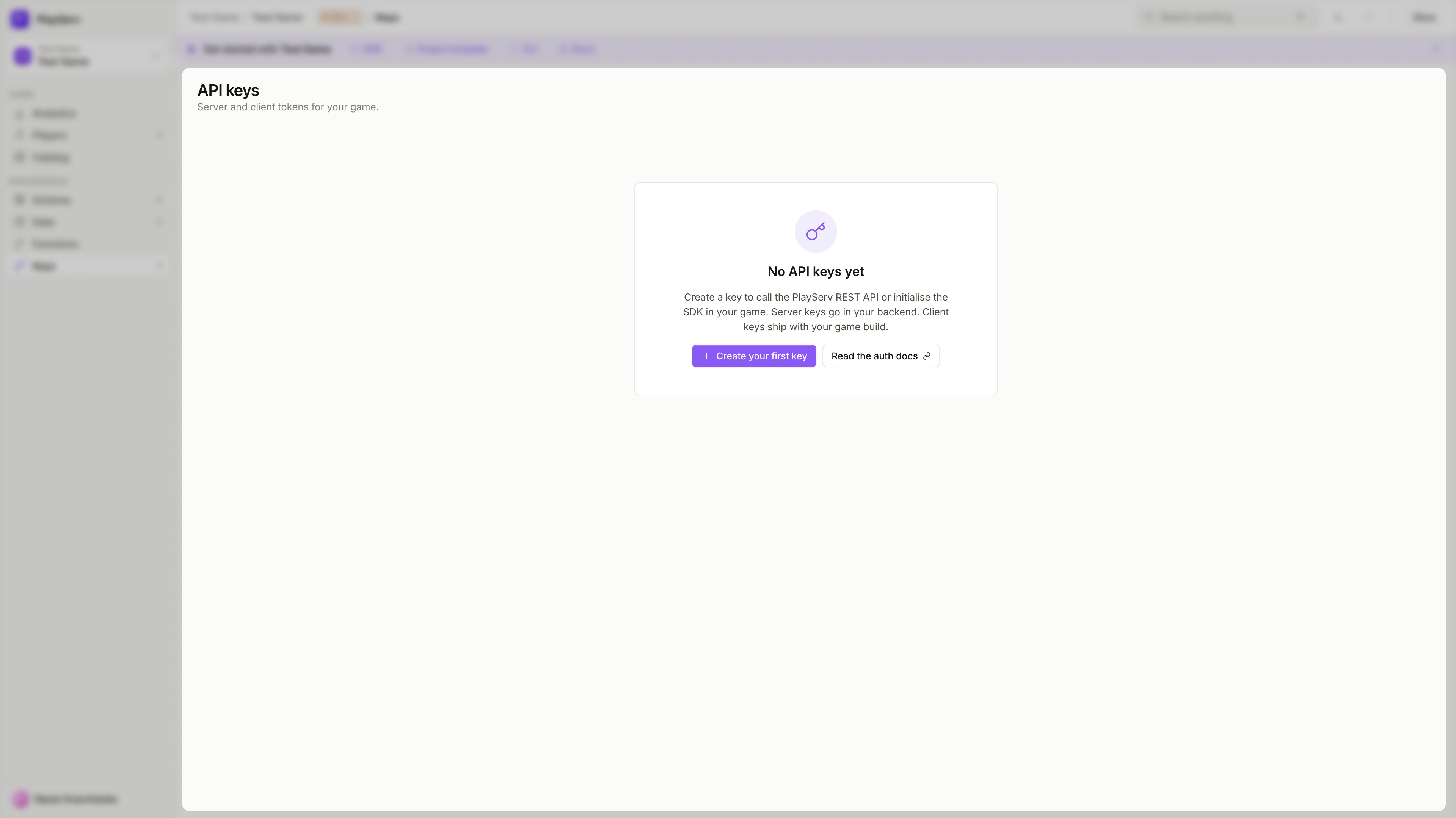
Click + Create key (or Create your first key) to open the creation form.
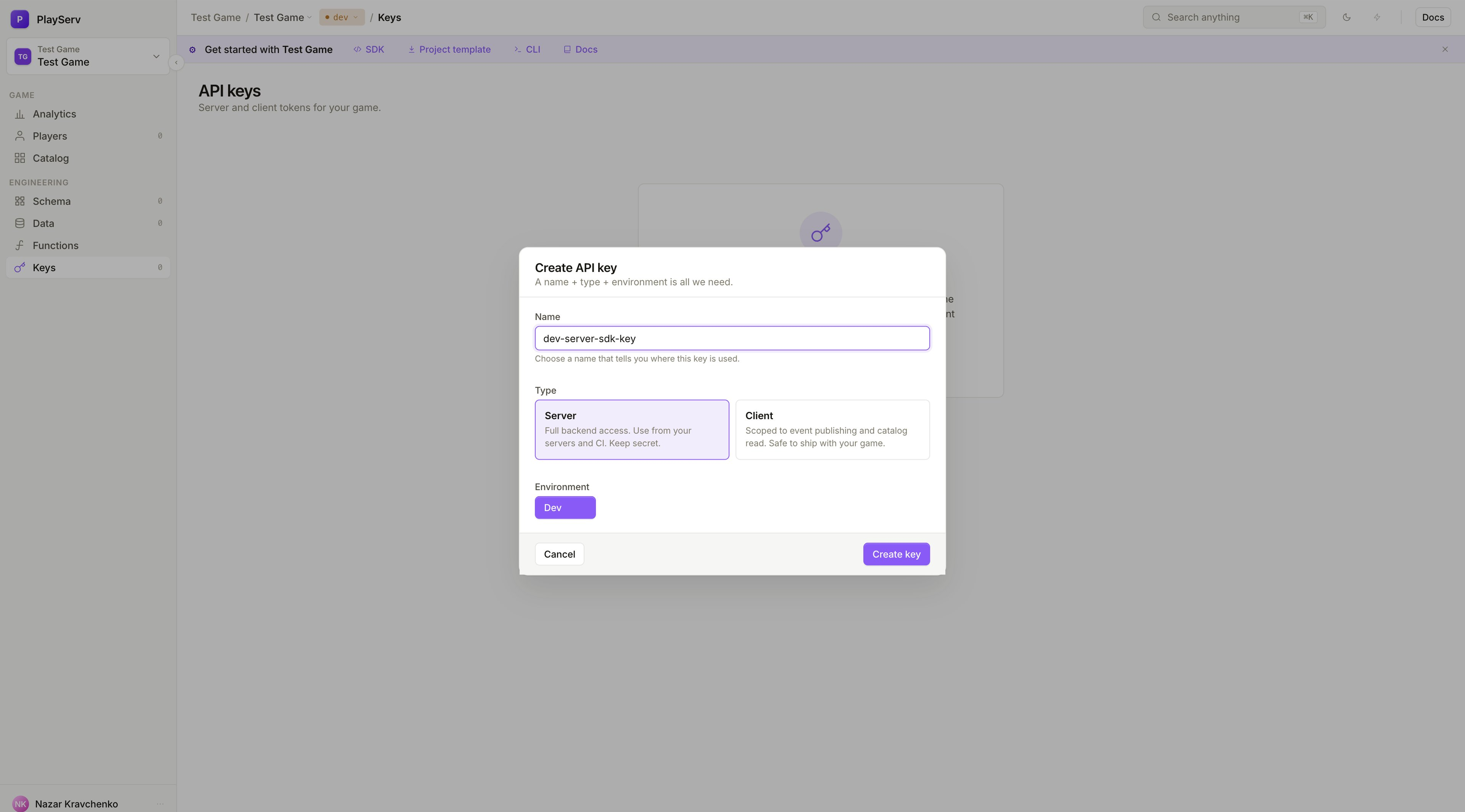
Fill in the following:
- Name — choose a name that clearly describes where this key is used. For example:
dev-server-backend,dev-client-unity-build,ci-deploy-key. A descriptive name is the only way to identify a key later in the table. - Type — select Server or Client depending on the integration. See Key types above if you are unsure which to choose.
- Environment — select the target environment. Currently Dev is available.
Click Create key.
Save the token
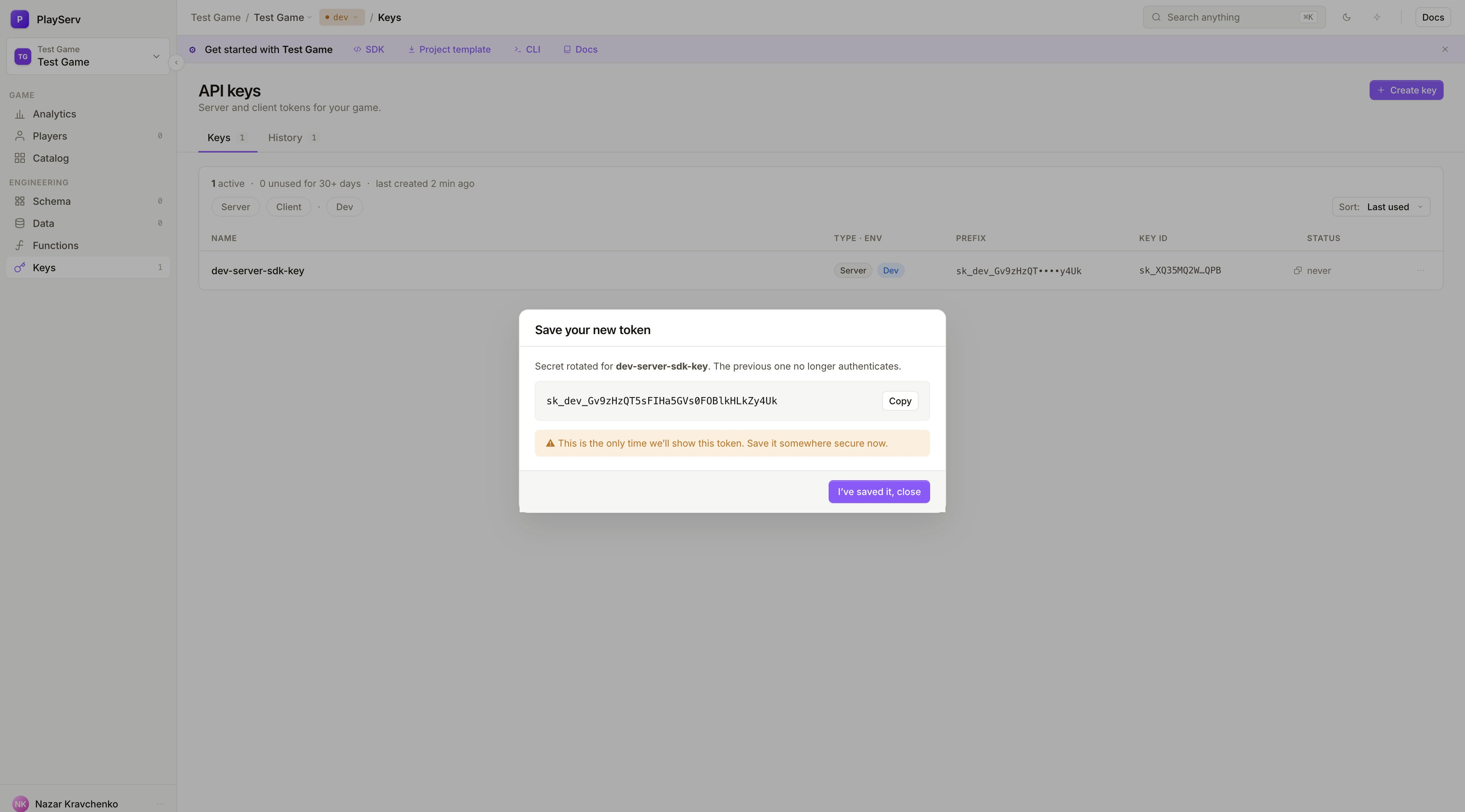
After creation, the full token value is shown exactly once in the Save your token dialog.
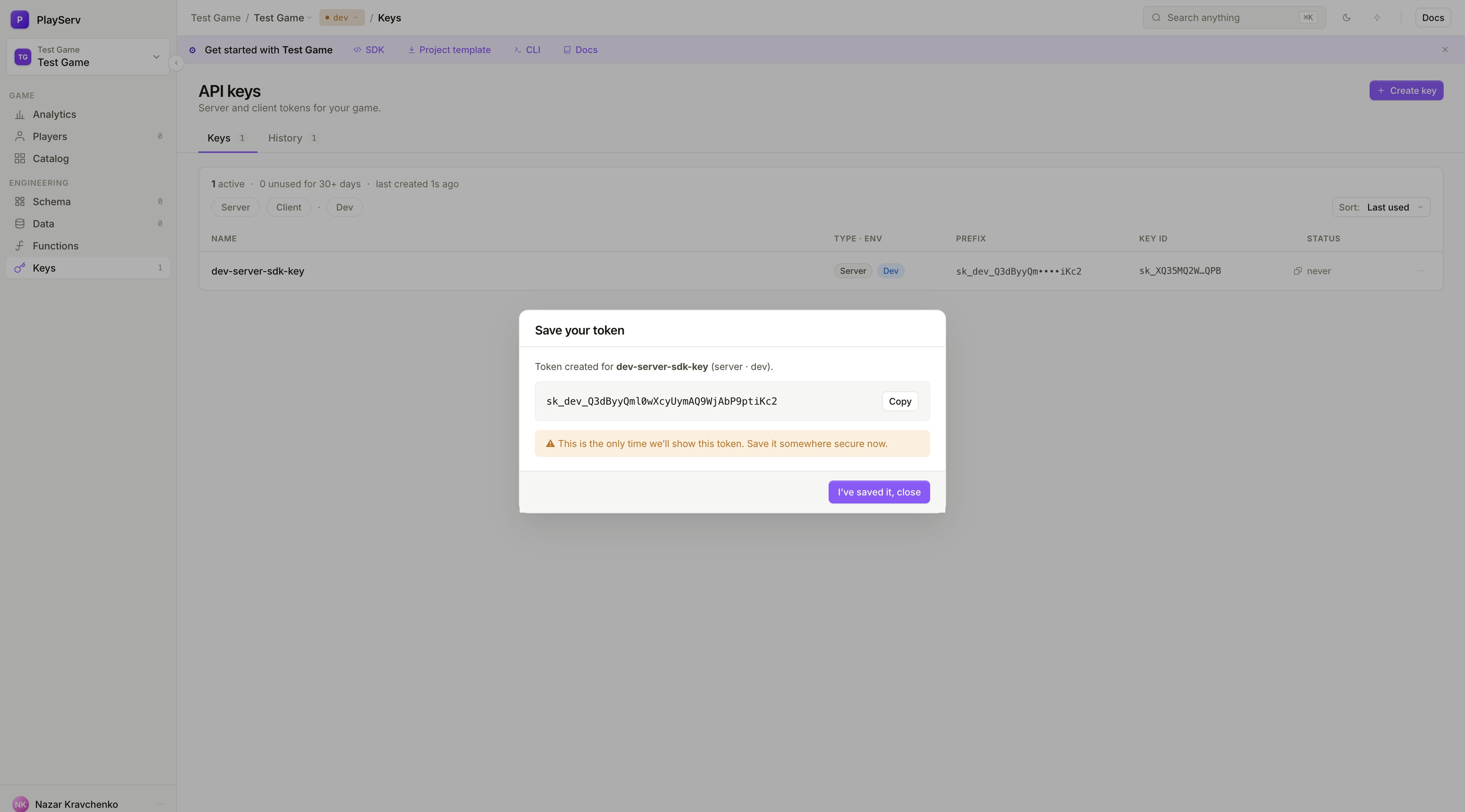
Copy the token immediately and store it in a secure location — a password manager, a secrets manager, or an environment variable in your CI system. Click I've saved it, close to dismiss the dialog.
This is the only time the full token is shown. Once the dialog is closed, the secret cannot be retrieved — only rotated. If the token is lost before it is saved, you will need to rotate the key to get a new one.
Keys list
After dismissing the dialog, the key appears in the Keys table. A project with both a Server and a Client key looks like this:
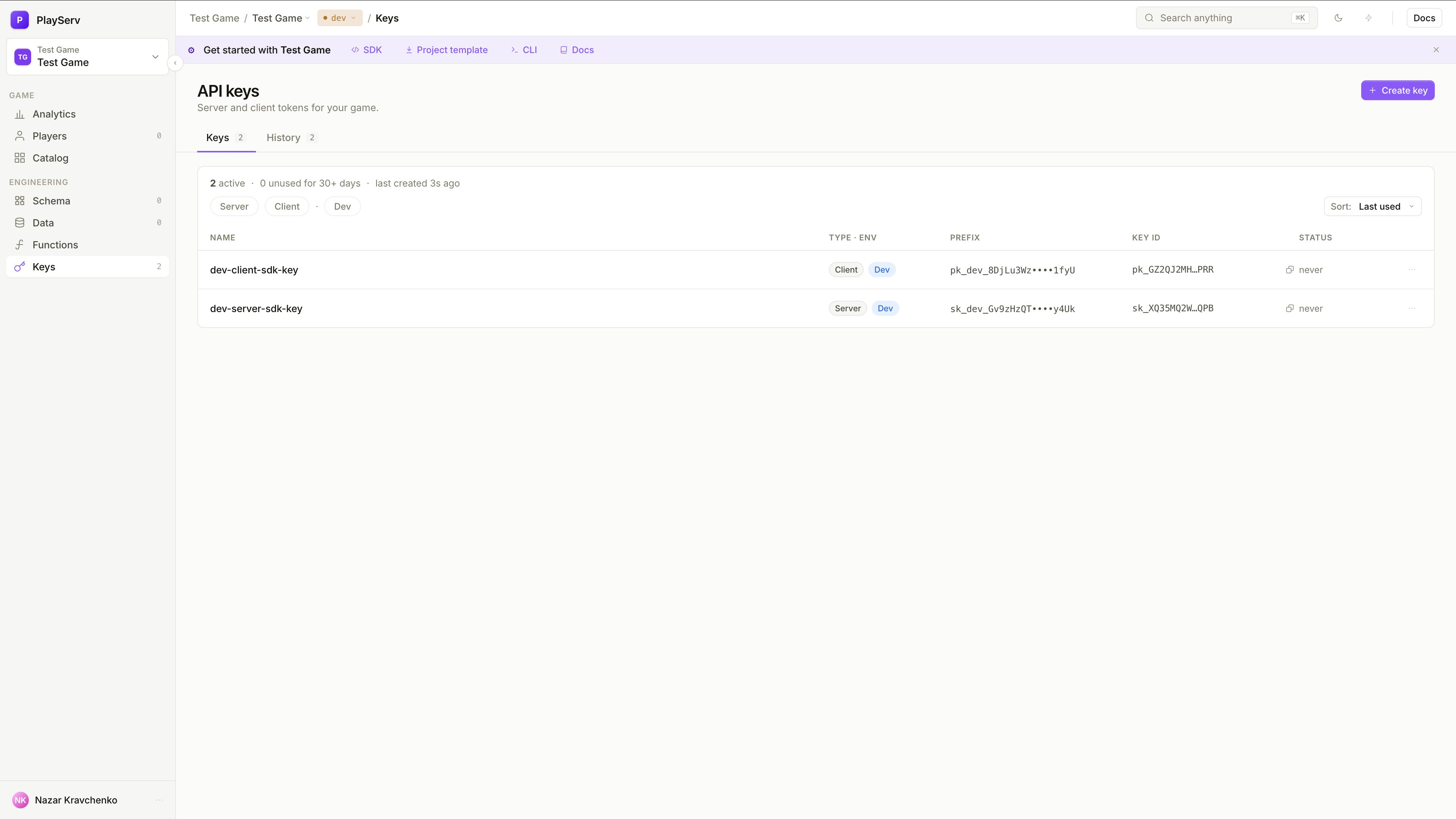
The table shows:
- Name — the label you assigned at creation
- Type · Env — the key type (Server or Client) and the environment it belongs to
- Prefix — the first few characters of the key, useful for identifying which secret is in use without exposing the full value
- Key ID — a stable identifier for the key entry, independent of the secret value
- Status — when the key was last used;
nevermeans it has not been used yet
Use the Server, Client, and Dev filter pills to narrow the list when working with many keys.
Rename a key
To update a key's name, click on the key row in the table. The name field becomes editable inline — type a new name and press Enter to save.
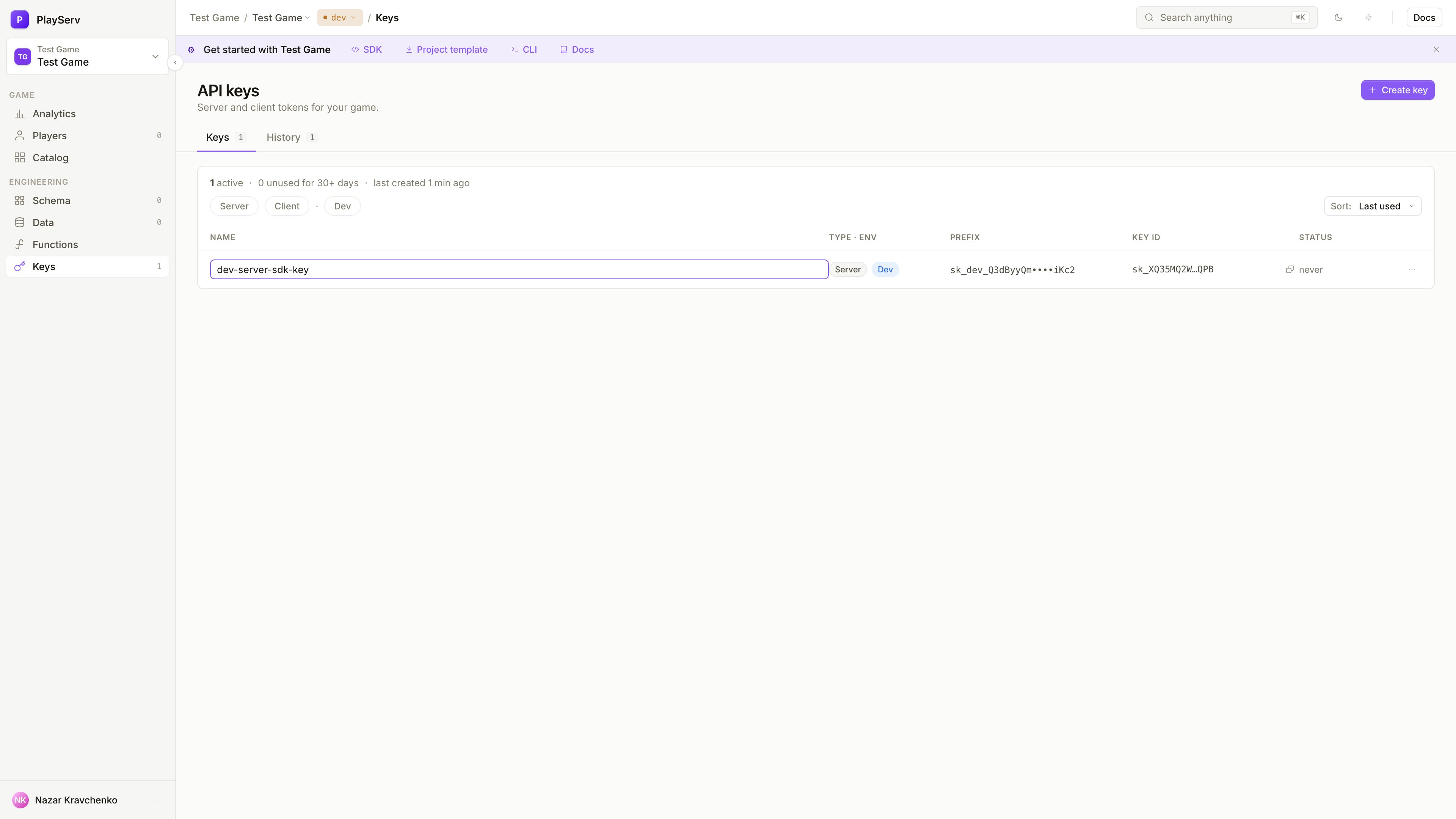
Renaming does not affect the key's secret or its ability to authenticate. It only updates the label in the table. Use this to keep names accurate as integrations change over time — for example, renaming dev-server-sdk-key to ci-deploy-server-key after repurposing it for a CI pipeline.
Rotate a secret
Rotate a key when you suspect the current secret was exposed, or as part of a regular credential rotation policy. Rotating replaces the secret value while keeping the key entry — the key ID, name, type, and environment all remain the same.
Click on a key row and select Rotate secret. A confirmation dialog appears.
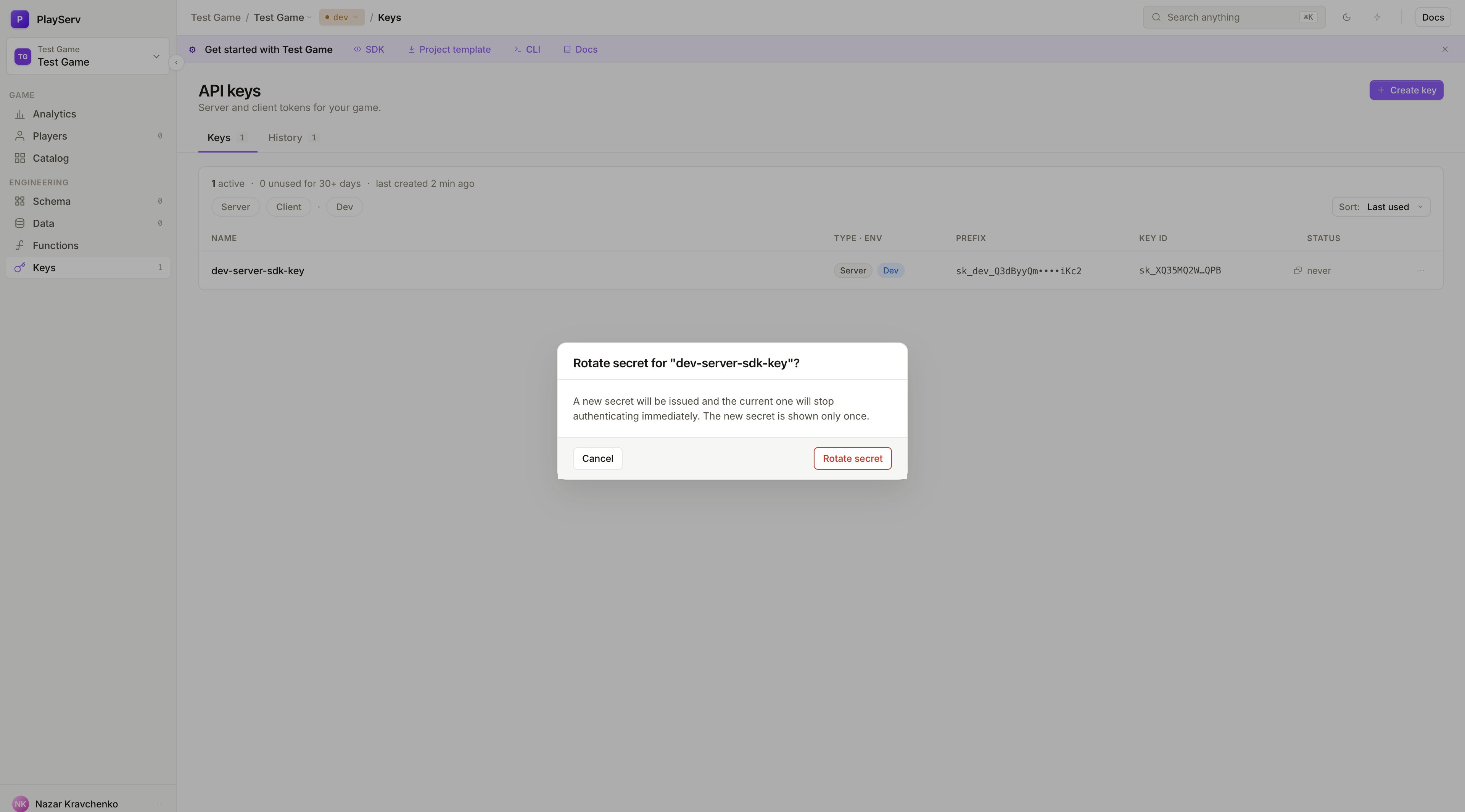
The current secret stops authenticating immediately after rotation. Any service still using the old secret will fail to connect. Update all affected services with the new secret before or immediately after rotating.
Click Rotate secret to confirm. The new token is shown once in the same Save your token dialog — copy it before closing.
Revoke a key
Revoke a key to permanently remove it from the project. This is the right action when a key is no longer needed, when a contractor's access should be ended, or when a key has been compromised and rotation is not sufficient.
Click on a key row and select Revoke key. A confirmation dialog appears.
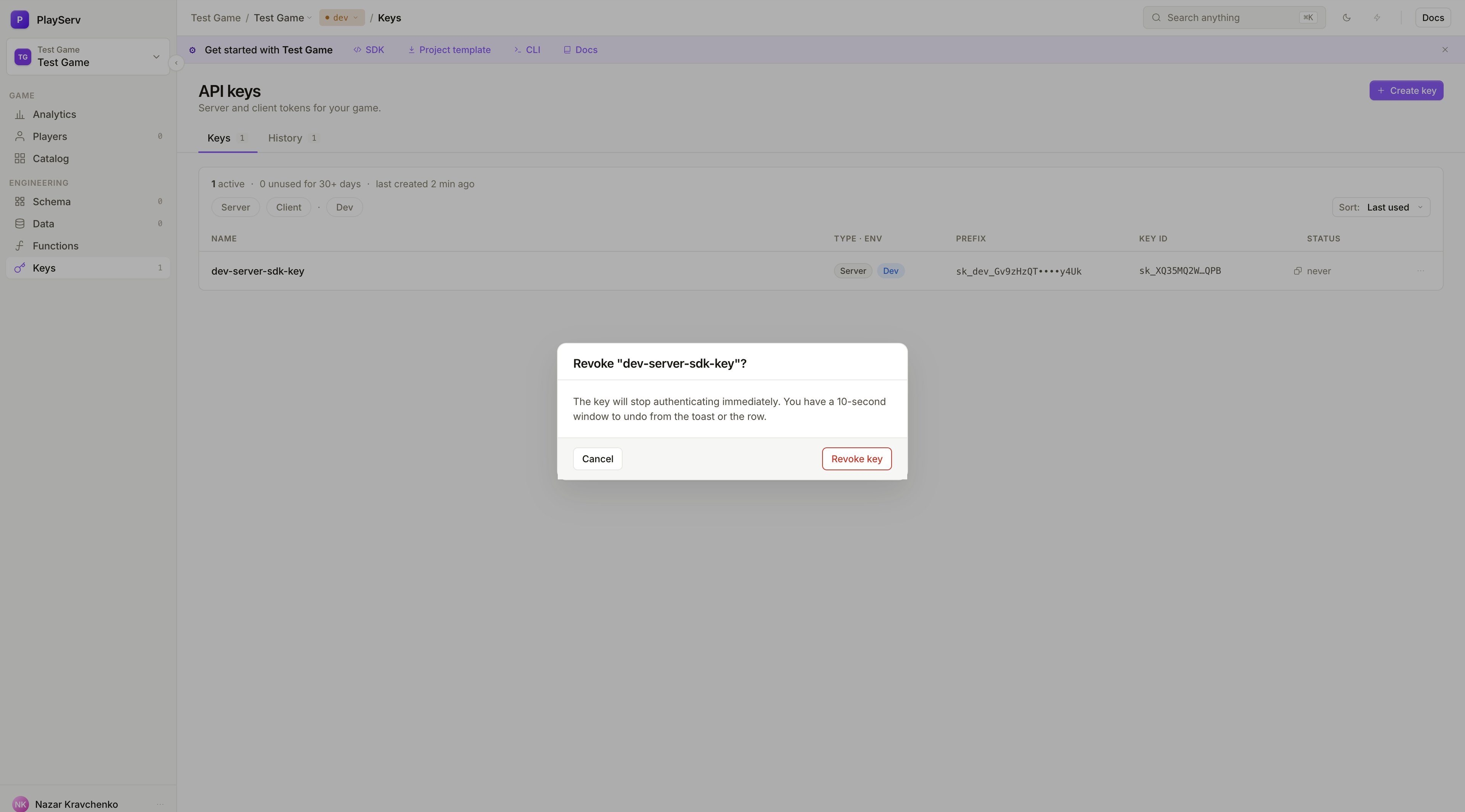
The key stops authenticating immediately after revocation. Any service using it will lose access. Make sure the key is not in use before revoking, or be ready to update the affected services immediately after.
Click Revoke key to confirm. You have a 10-second window to undo the action from the toast notification or the key row before it is permanently removed.
Best practices
- Use descriptive names. The name is the only way to understand what a key is for when reviewing the table six months later.
- One key per integration. Avoid reusing a single key across unrelated services. If one integration is compromised, you want to be able to revoke just that key.
- Never put Server keys in client builds. A Server key extracted from a game binary gives an attacker full backend access to your project.
- Rotate on suspected exposure. If you have any reason to believe a secret was seen by someone who shouldn't have it, rotate immediately.
- Revoke unused keys. Keys that are no longer in use are unnecessary risk. Clean them up regularly.
Next step
Once you have a key, connect the project to Unity.