Creating a New Project
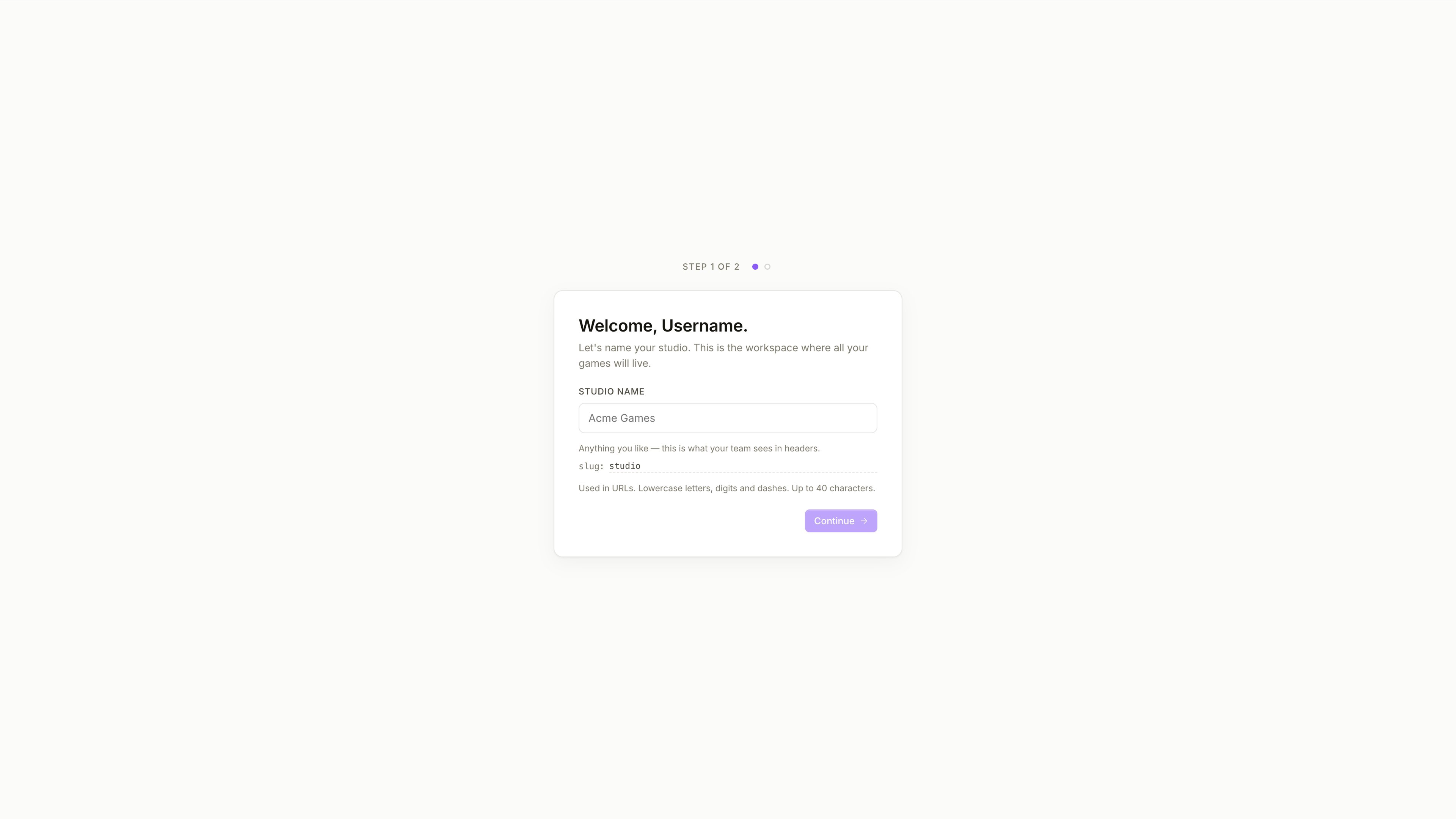
Creating a game starts with a short setup flow. It takes you from the initial onboarding step to a ready project with a Development environment, a project ID, and the first SDK credentials needed for integration.
If you are just getting started, the flow is straightforward. You choose how to begin, enter the basic project details, review the generated setup, and finish in the project workspace.
How the flow starts
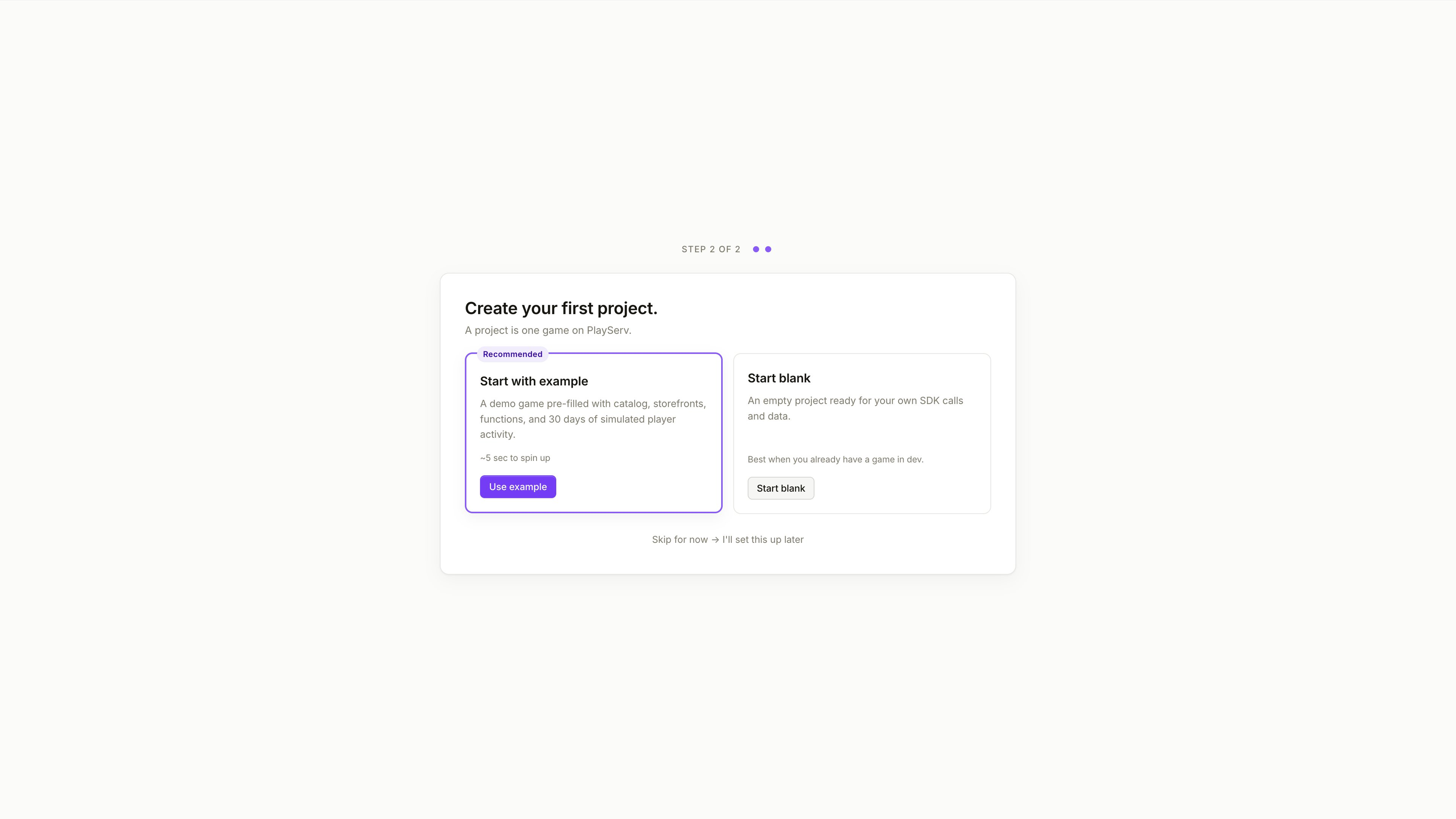
Immediately after signing in, the backoffice requires you to choose one of two starting options:
- Create New Game
- Setup Example Game
This is the first required action in the product.
Choose Create New Game if you want to start from scratch. Choose Setup Example Game if you want to begin with a preconfigured sample project.
This guide covers the flow for creating a new project.

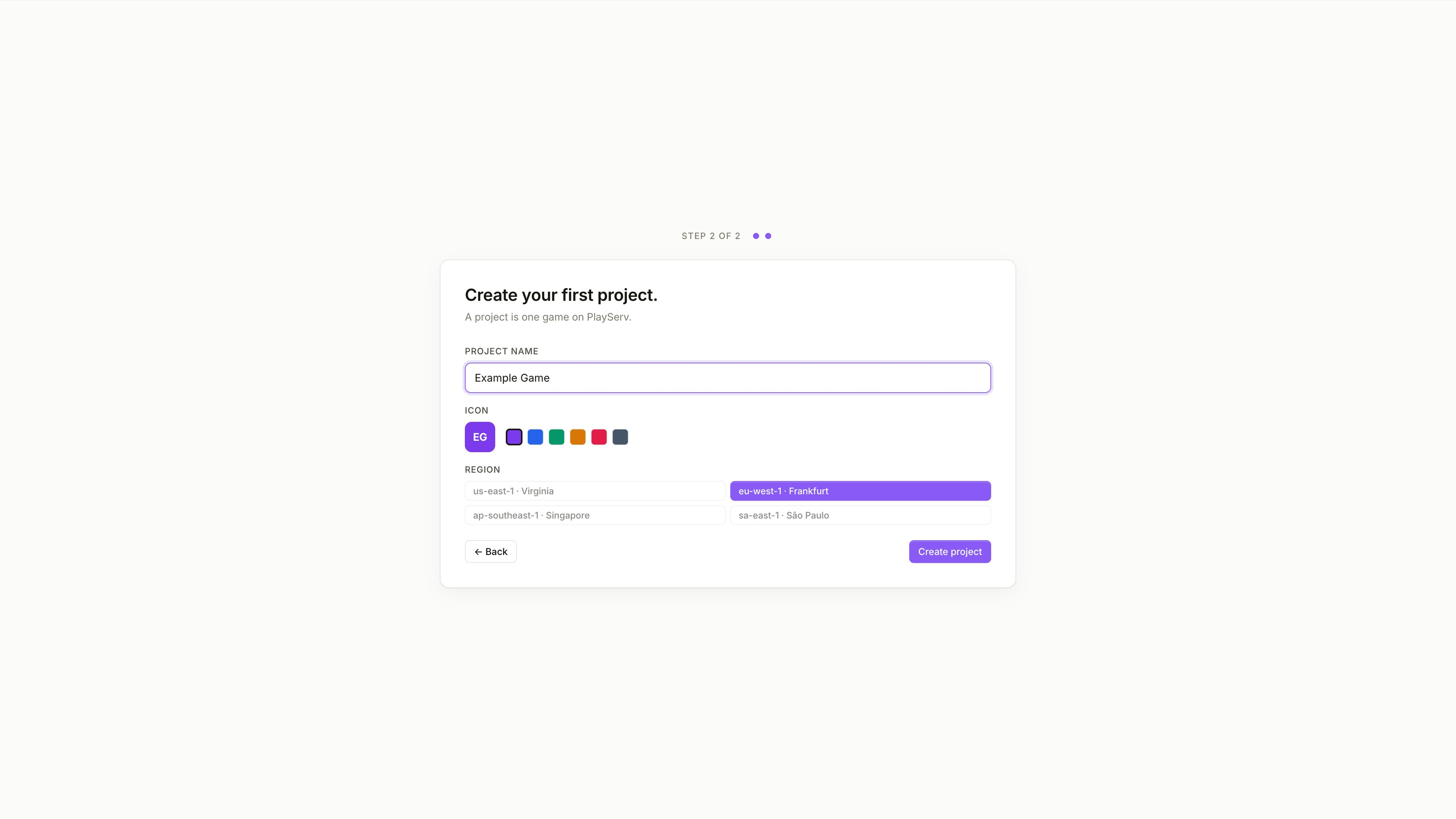
Enter game details
On the Game details step, enter the project name in the Game name field.
This name is used to identify the project in the backoffice and in the project selector. It does not need to be final, but it should be clear enough to recognise later.
Once the name is entered, continue to the next step.
Review environment setup
On the Environment Setup step, the system prepares the project environments and generates the basic project configuration.
The interface currently shows two environments:
- Development
- Production
At this stage, the Development environment is already available, and Production support will be added soon. We are working on enabling separate environments for development and production so projects can be configured and managed across both stages independently.
The screen also shows an Auto-generated ID. This is the project identifier created by the system. You can copy it from this step and use it later during SDK setup.

Review SDK setup and quick start
On the SDK Setup & Quick Start step, the backoffice displays the first integration details for the project.
This screen is meant to help you move from project creation to SDK setup. It provides the core project credentials and quick reference examples for the next integration steps.
The screen includes:
- the Development Key
- quick-start code snippets
- a switch between Client SDK Snippet and Server SDK Snippet
- copy actions for the displayed values
Development key
The Development Key is the environment-specific credential used during SDK setup.
It allows your client or server integration to connect to the correct project environment in the backoffice. In practice, this key tells the SDK which project it should work with in development.
Use this key for local development, testing, and non-production builds.
Because the key is tied to a specific environment, it should be handled as a project credential and stored carefully.
Client SDK snippet
The Client SDK Snippet shows the basic setup required on the client side.
This is typically the starting point when connecting the project to a game client such as a Unity application. It helps you understand which project values need to be passed into the SDK during the initial configuration.
Server SDK snippet
The Server SDK Snippet shows the equivalent starting point for server-side integration.
It is intended for cases where the project also needs backend or server-side setup in addition to the client integration.
Treat environment keys as project credentials. Store them securely and avoid exposing them in public repositories or shared screenshots.
Why this step matters
This step confirms that the project has been created successfully and that the Development environment is ready for integration.
At this point, you already have the minimum information needed to begin connecting the project to the SDK:
- the project ID
- the Development Key
- quick-start setup examples
The full integration flow is covered separately in Connecting a Project to Unity.

Finish setup
When you click Finish & Setup, the setup flow ends and the newly created project opens in the backoffice workspace.
What becomes available after creation
After the project is created, the backoffice opens the project dashboard.
The following elements are available immediately:
- the new project appears in the project selector
- the current Game ID is visible in the project header
- a Quick Start Panel is displayed
- an SDK Keys Summary block is available
- a Development key is already present
At this point, the project is ready for the next step.
Next step
After creating a project, the next step is to connect it to Unity.
For that flow, you will need:
- the project ID
- the Development SDK key
These steps are covered in Connecting a Project to Unity.