Connecting a Project to Unity
Once the project has been created in PlayServ Backoffice, the next step is to connect it to Unity.
The connection flow is straightforward:
- import the Unity package with the SDK
- enter the project credentials in the PlayServ settings window
- add a bootstrap script to a GameObject in the scene
After that, the Unity project is ready to connect to PlayServ.
Before you start
Before connecting the SDK in Unity, make sure you already have:
- a created project in PlayServ Backoffice
- a valid Game Access Token
- a valid Game ID
These values are provided during project setup and in the SDK key section of the Backoffice.
In this flow, the SDK is configured from the PlayServ settings window in Unity, using the credentials generated in Backoffice.
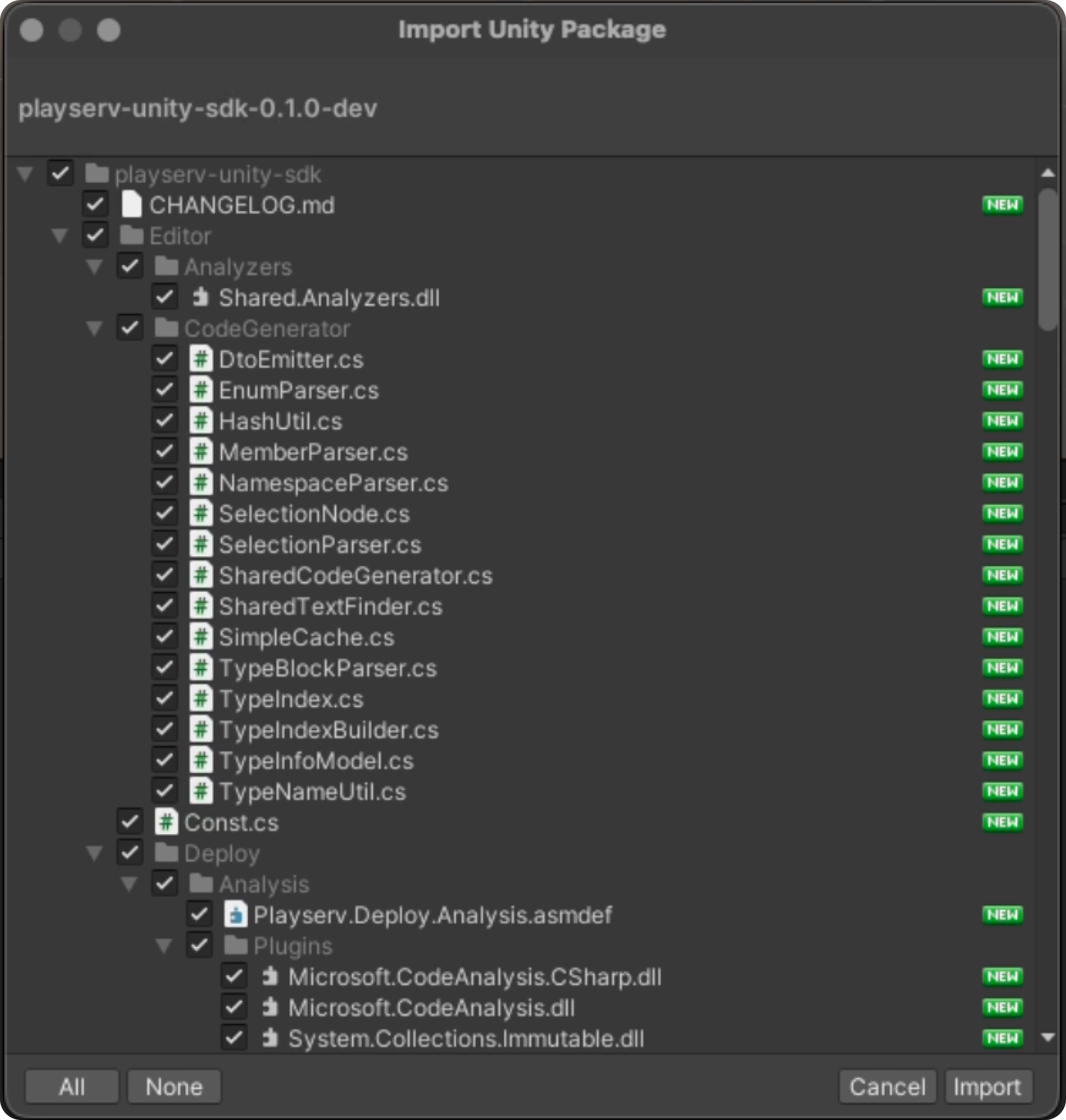
Step 1. Import the Unity package
Start by importing the Unity package that contains the PlayServ SDK.
Once the package is imported, the PlayServ configuration becomes available in the Unity project.
At this point, the project is ready for SDK setup.
Step 2. Configure the PlayServ settings
After the package is imported, the PlayServ settings window becomes available in Unity.
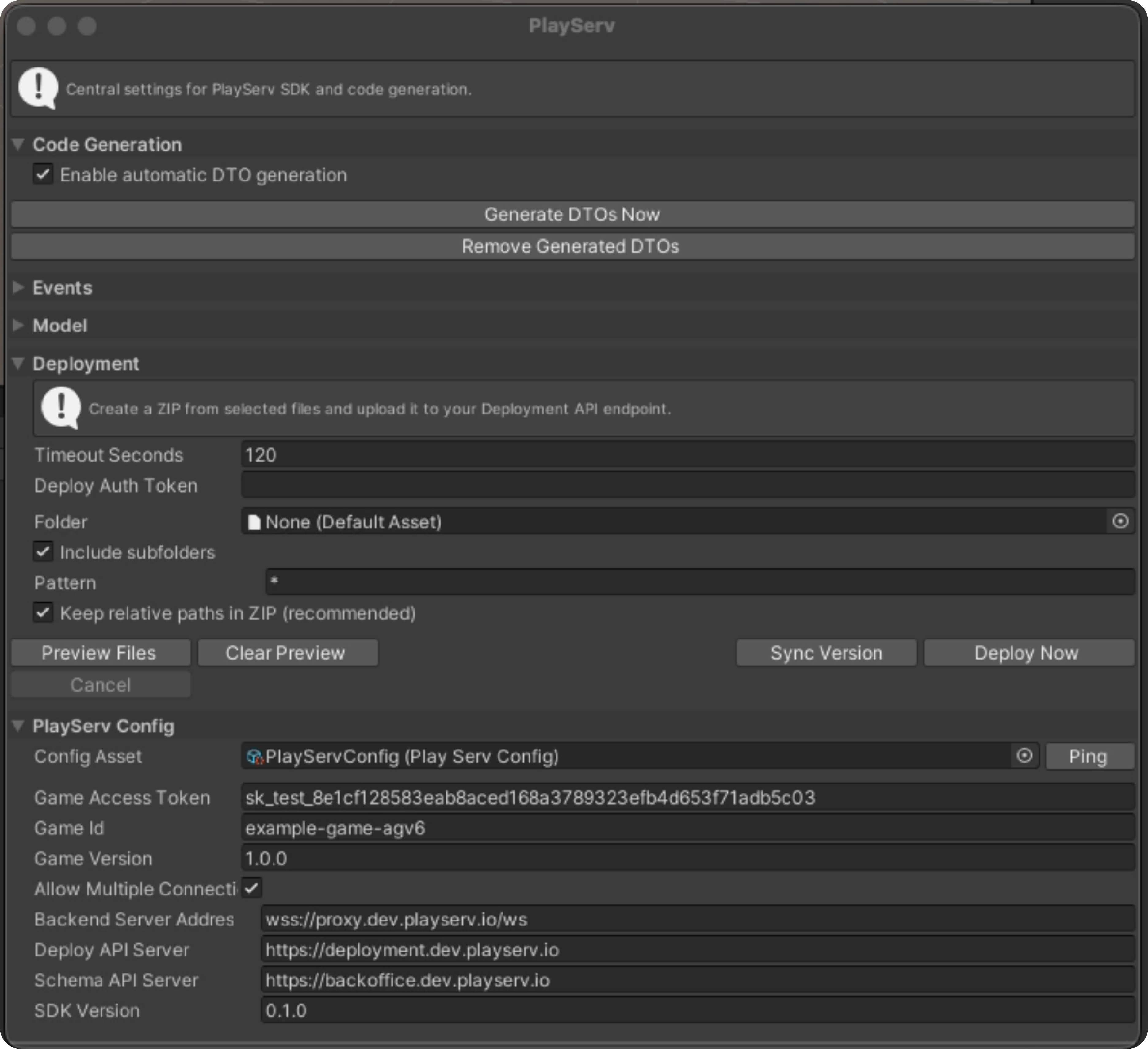
Use this window to enter the project credentials received from Backoffice.
The main values required for setup are:
- Game Access Token
- Game ID
You can also define the game version here if needed.
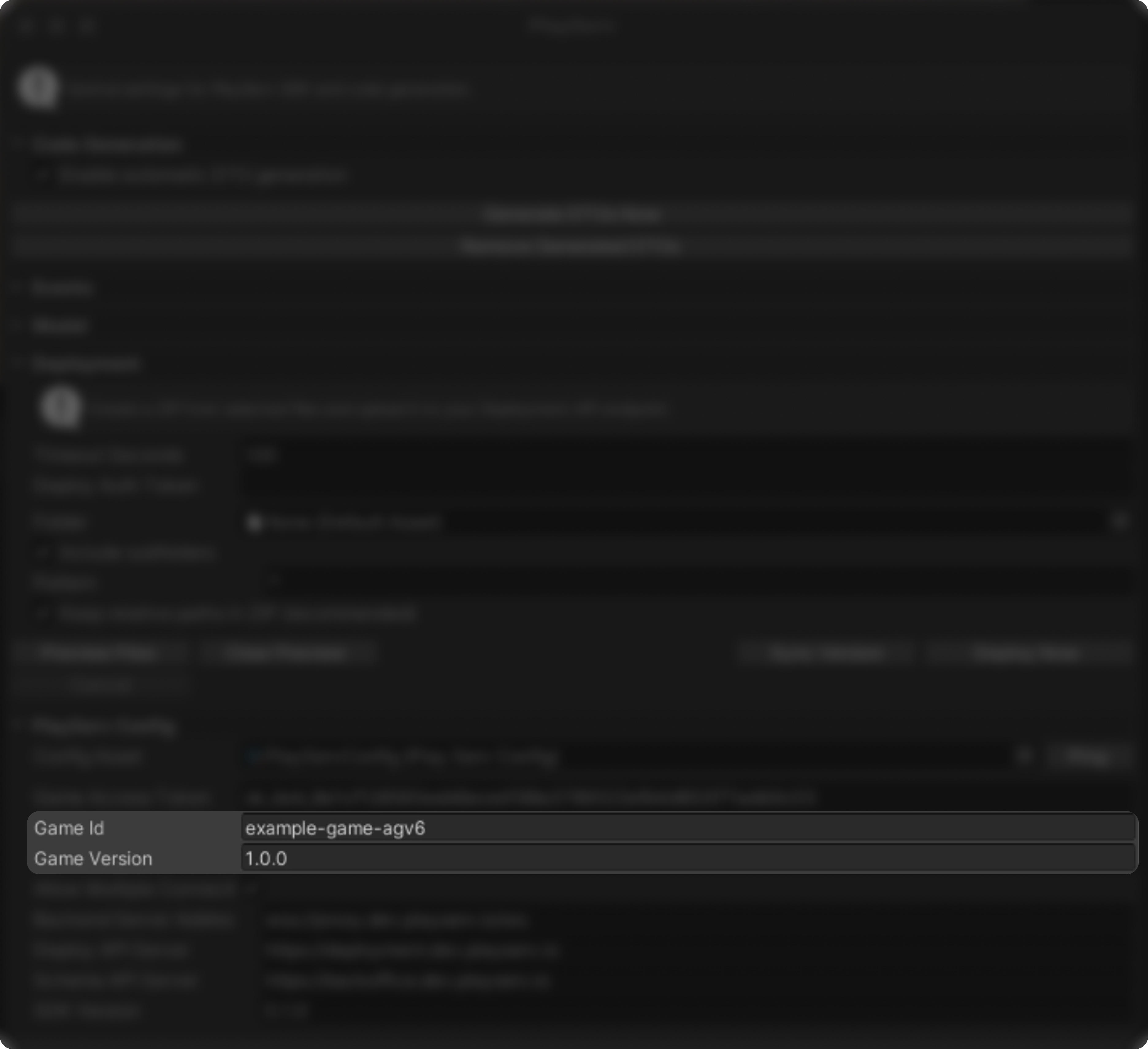
From this point on, the SDK can resolve the project configuration from the PlayServ config asset.
Make sure the token and project ID belong to the same PlayServ project and environment. A mismatched token and project ID will prevent the SDK from connecting correctly.
If your workflow uses the config asset as the source of truth, keep the credentials in the PlayServ settings window and do not override them again in scene components unless that is intentional.
Step 3. Add a bootstrap script to the scene
Once the settings are configured, create a bootstrap script and attach it to a GameObject in the scene.
This script is responsible for:
- reading the PlayServ configuration
- applying the SDK settings
- connecting automatically when the scene starts
- keeping the connection available across scene loads
A good place for this script is a persistent bootstrap object in the first scene of the project.
For example:
- create an empty GameObject
- name it
PlayServBootstrap - attach the script below
using System;
using System.Threading.Tasks;
using Playserv.Proxy.Common;
using Playserv.Wrapper;
using UnityEngine;
using UnityEngine.Serialization;

namespace Playserv.Examples
{
    /// <summary>
    /// Persistent bootstrap component for configuring and connecting PlayServ in samples.
    /// </summary>
    public sealed class PlayServBootstrapSample : MonoBehaviour
    {
        private static PlayServBootstrapSample _instance;

        [Header("Credentials")]
        [SerializeField] private string gameAccessToken = "your-token";
        [SerializeField] private string gameId = "game-001";
        [SerializeField] private string userId = "player-001";
        [SerializeField] private string gameVersion = "1.0.0";
        [SerializeField] private bool overrideCredentialsFromInspector;

        [Header("Resolved Endpoints (Read Only)")]
        [FormerlySerializedAs("remoteEndpoint")]
        [SerializeField] private string backendServerAddress = PlayServSettings.DefaultBackendServerAddress;
        [SerializeField] private string deployApiServerAddress = PlayServSettings.DefaultDeployApiServerAddress;
        [SerializeField] private string schemaApiServerAddress = PlayServSettings.DefaultSchemaApiServerAddress;

        [Header("Behavior")]
        [SerializeField] private bool autoConnect;
        [SerializeField] private bool disconnectOnDestroy = true;

        [Header("KeepAlive")]
        [SerializeField] private int keepAlivePingIntervalMs = 5000;
        [SerializeField] private int keepAlivePongTimeoutMs = 5000;

        private bool _isOwner;

        private void Awake()
        {
            if (_instance != null && _instance != this)
            {
                Destroy(gameObject);
                return;
            }

            _instance = this;
            _isOwner = true;
            DontDestroyOnLoad(gameObject);
            RefreshResolvedEndpointsPreview();
        }

        private void Start()
        {
            if (!_isOwner)
                return;

            Configure();

            if (autoConnect &&
                PlayServ.State != PlayServState.Online &&
                PlayServ.State != PlayServState.Connecting &&
                PlayServ.State != PlayServState.Handshaking)
            {
                _ = ConnectAsync();
            }
        }

        private void OnEnable()
        {
            if (!_isOwner)
                return;

            PlayServ.OnTransportError += OnTransportError;
        }

        private void OnDisable()
        {
            if (!_isOwner)
                return;

            PlayServ.OnTransportError -= OnTransportError;
        }

        private void OnDestroy()
        {
            if (_instance == this)
                _instance = null;

            if (_isOwner && disconnectOnDestroy)
                PlayServ.Disconnect();
        }

        private void OnValidate()
        {
            RefreshResolvedEndpointsPreview();
        }

        [ContextMenu("Configure SDK")]
        public void Configure()
        {
            var settings = BuildSettingsFromConfig();

            if (overrideCredentialsFromInspector)
            {
                settings.GameAccessToken = gameAccessToken;
                settings.GameId = gameId;
                settings.UserId = userId;
                settings.GameVersion = gameVersion;
            }

            settings.KeepAlivePingIntervalMs = keepAlivePingIntervalMs;
            settings.KeepAlivePongTimeoutMs = keepAlivePongTimeoutMs;

            PlayServ.Config(settings);
            ApplyResolvedEndpointsPreview(settings);
            Debug.Log(
                $"[PlayServ][Sample] Configured. gameId={settings.GameId}, credentialsSource={(overrideCredentialsFromInspector ? "inspector" : "config")}, backend={settings.BackendServerAddress}, pingInterval={settings.KeepAlivePingIntervalMs}ms, pongTimeout={settings.KeepAlivePongTimeoutMs}ms");
        }

        [ContextMenu("Connect SDK")]
        public void Connect()
        {
            _ = ConnectAsync();
        }

        [ContextMenu("Disconnect SDK")]
        public void Disconnect()
        {
            PlayServ.Disconnect();
            Debug.Log("[PlayServ][Sample] Disconnected.");
        }

        public async Task ConnectAsync()
        {
            try
            {
                bool connected = await PlayServ.Connect();
                Debug.Log(connected
                    ? "[PlayServ][Sample] Connected."
                    : "[PlayServ][Sample] Connection failed.");
            }
            catch (Exception ex)
            {
                Debug.LogError($"[PlayServ][Sample] Connect error: {ex.Message}");
            }
        }

        private void OnTransportError(TransportError error)
        {
            Debug.LogError($"[PlayServ][Sample] Transport error: {error}");
        }

        private void RefreshResolvedEndpointsPreview()
        {
            var settings = BuildSettingsFromConfig();
            ApplyResolvedEndpointsPreview(settings);
        }

        private void ApplyResolvedEndpointsPreview(PlayServSettings settings)
        {
            if (settings == null)
                return;

            backendServerAddress = settings.BackendServerAddress;
            deployApiServerAddress = settings.DeployApiServerAddress;
            schemaApiServerAddress = settings.SchemaApiServerAddress;
        }

        private static PlayServSettings BuildSettingsFromConfig()
        {
            var config = Resources.Load<PlayServConfig>("PlayServConfig");
            if (config == null)
                return PlayServPackageDefaultsProvider.LoadSettingsOrDefault();

#if UNITY_EDITOR
            return PlayServSettingsResolver.ResolveEditorSettings(config);
#else
            return config.ToSettings();
#endif
        }
    }
}
In the default flow, this script reads the credentials from the PlayServ config asset.
The overrideCredentialsFromInspector option should only be enabled when you intentionally want to override the values set in the PlayServ settings window.
Step 4. Run the scene and verify the connection
After the script has been added to a GameObject, enter Play Mode.
If the setup is correct, the bootstrap component will:
- configure the SDK
- connect automatically if
autoConnectis enabled - keep the connection alive while the object exists
A successful connection can be verified in the Unity Console.
Look for logs such as:
[PlayServ][Sample] Configured.[PlayServ][Sample] Connected.
If something goes wrong, the script will also report:
- connection failures
- transport errors
- configuration issues
How this setup works
This flow separates configuration from runtime behavior.
The PlayServ settings window stores the SDK configuration for the project.
The bootstrap script applies that configuration at runtime and opens the connection.
That means:
- project credentials are managed in one place
- the scene only needs a small bootstrap component
- connection setup stays reusable across scenes
Use one persistent bootstrap object for the whole project instead of placing separate connection scripts in multiple scenes.
Common things to check
If the project does not connect as expected, check the following:
- the Unity package was imported correctly
- the Game Access Token was copied correctly
- the Game ID matches the same Backoffice project
- the PlayServ config asset is present and filled in
- the bootstrap script is attached to an active GameObject
autoConnectis enabled if you expect connection on scene start
If the credentials are set in the PlayServ settings window, do not accidentally override them with different inspector values in the bootstrap component.
Next step
Once the Unity project connects successfully, the next step is to continue working with the Backoffice data model and project configuration.
The most useful follow-up documents are: